OpenArt Lip-Sync: How to Make AI Influencer Talking Videos
Picture this: You’re scrolling TikTok at 2 AM, and suddenly a stunning virtual babe is chatting about skincare like she’s your bestie. That’s AI influencers taking over, and you’re about to learn how to make bank creating these talking avatars in under 5 minutes. OpenArt Lip-Sync turns any photo into a speaking character—no camera, no…

By :
sandra
April 11, 2026
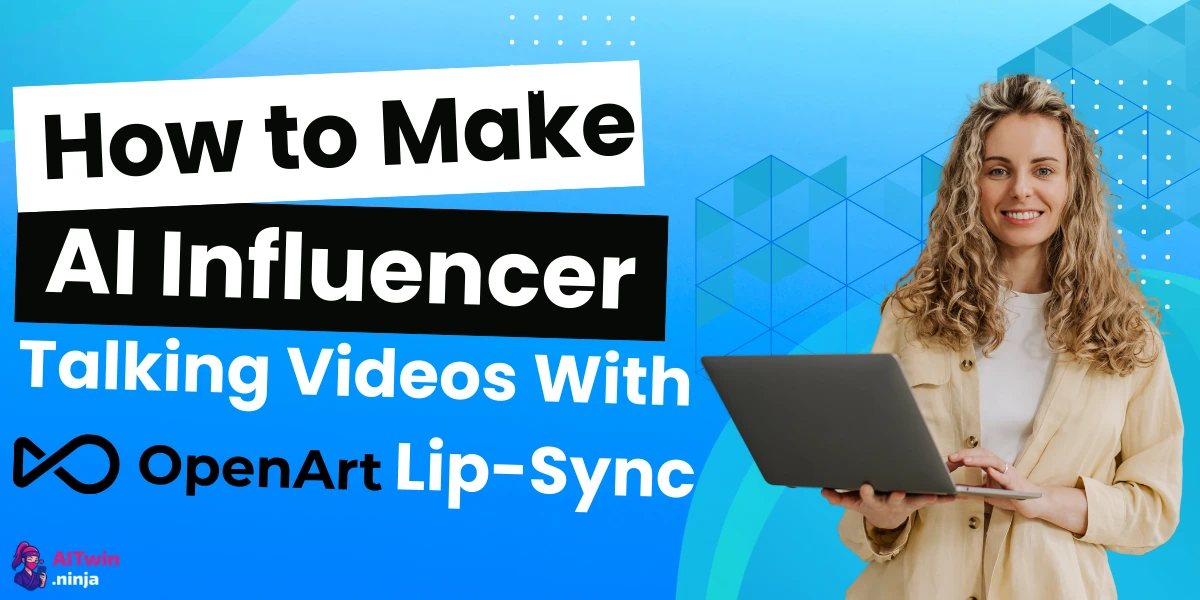
Picture this: You’re scrolling TikTok at 2 AM, and suddenly a stunning virtual babe is chatting about skincare like she’s your bestie. That’s AI influencers taking over, and you’re about to learn how to make bank creating these talking avatars in under 5 minutes.
OpenArt Lip-Sync turns any photo into a speaking character—no camera, no acting skills, just pure digital wizardry. Content creators are already raking in thousands monthly with faceless channels, NSFW AI girlfriends, and virtual spokespersons. Ready to join the gold rush?
What Is OpenArt Lip-Sync and Why Creators Are Obsessed
OpenArt dropped their lip-sync feature in 2025, and it’s been absolute chaos since. Upload a photo, add your audio, and boom—you’ve got a talking AI character that moves its mouth in perfect sync with your words.
The platform gives you four different AI models to pick from, each with its own superpower. We’re talking OmniHuman 1.5 for premium quality that’ll fool your mum, Kling Avatar 2.0 for handling multiple speakers, Hedra when you need speed over perfection, and Kling AI for breathing new life into existing footage.
OpenArt Lip-Sync AI Makes Photos Talk Instantly
exclusive
Unlock OpenArt AI lip-sync avatars and talking photo generator. Use Code ALL15 for 15% Off premium features today.
SAVE UP TO 15
What Makes This Tool Different From The Rest
Here’s the kicker—most AI video tools make you jump through hoops. OpenArt keeps it dead simple:
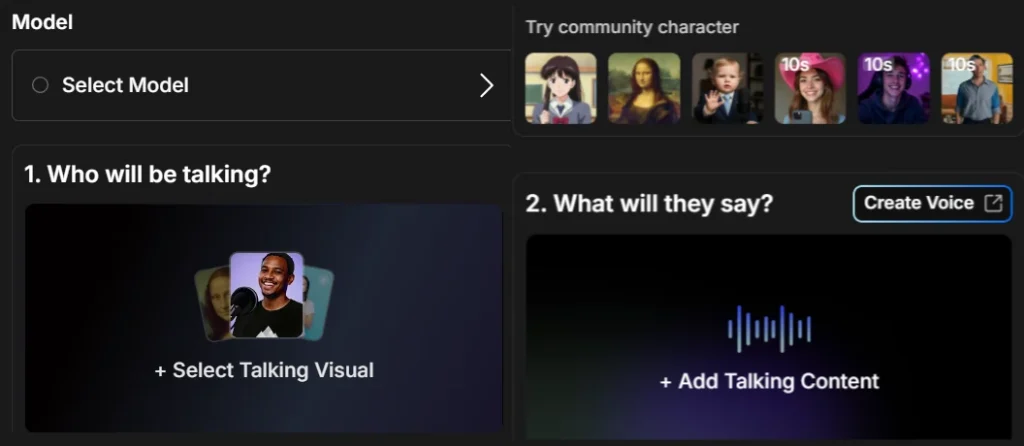
The AI talking head video space is packed, but OpenArt’s got all four models under one roof. No switching between platforms, no juggling five subscriptions.
Setting Up Your Free Account (Takes 3 Minutes, Zero Card BS)

Head to openart.ai and sign up. They don’t ask for payment details upfront—proper refreshing, that.
What you get instantly:
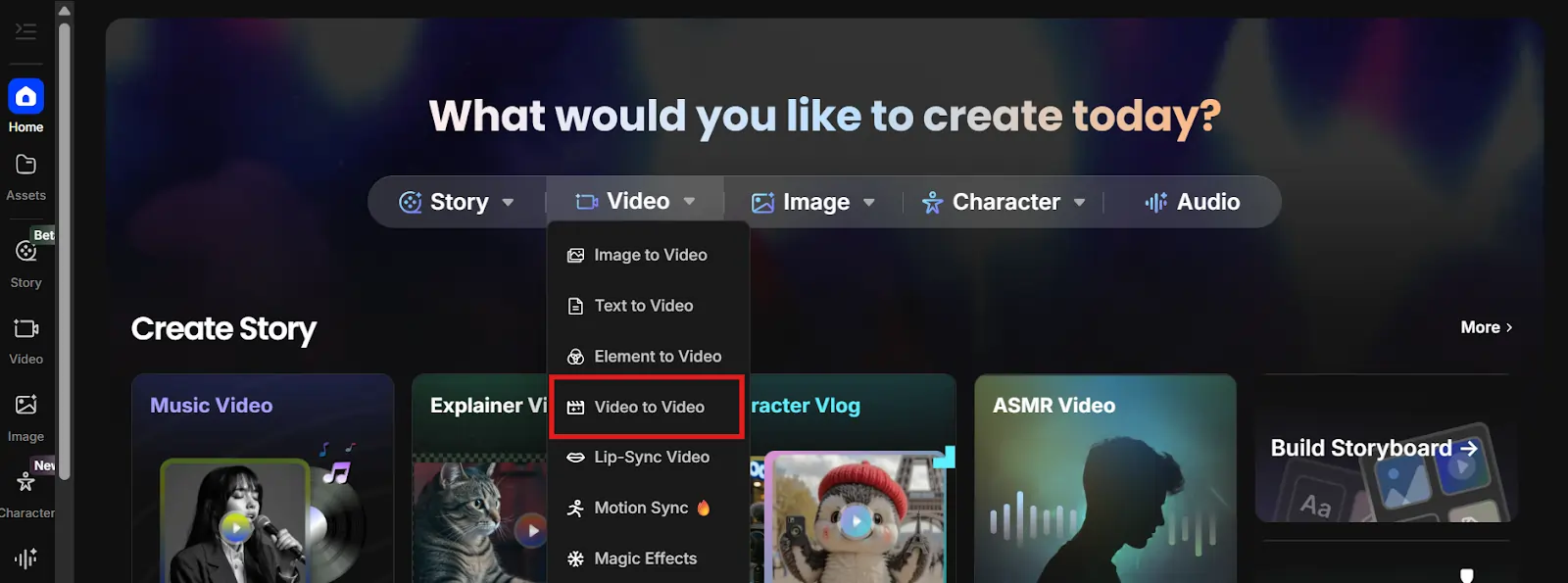
Navigate to the Video section in your dashboard, then click Lip Sync. That’s your playground sorted.
Choosing the Right AI Model for Your Talking Videos
Not all models are created equal. Here’s the honest breakdown of what each does best:
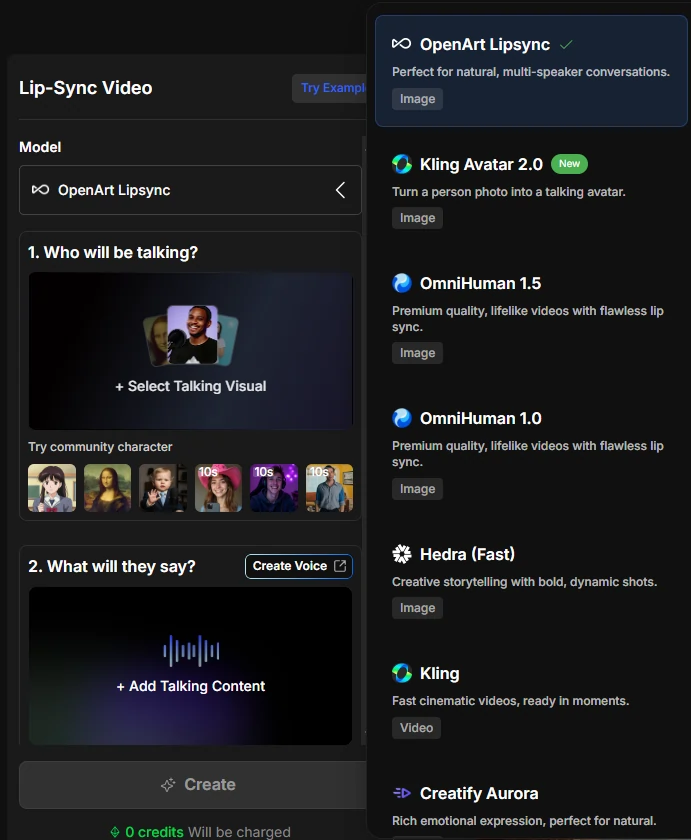
OmniHuman 1.5 – The Premium Beast
When to use: High-end YouTube videos, sponsored content, anything monetized
This model produces lip sync so clean it’s almost creepy. Faces move naturally, expressions shift with the audio tone, and the detail is chef’s kiss.
The catch? Generation takes 2+ minutes, and it costs more credits. Worth it for content that’ll actually make you cash.
Kling Avatar 2.0 – The Social Butterfly
When to use: Interview-style videos, multi-person conversations, vlogs
Got two AI characters chatting? Kling Avatar handles multiple speakers without breaking a sweat. Feed it a photo of a real person, and the quality stays high.
Speed sits in the middle—not lightning fast, but not slow enough to make tea while you wait.
Hedra – The Volume King
When to use: Daily TikToks, testing hooks, quantity over perfection
Hedra cranks out videos faster than you can say “virtual influencer.” Quality drops a notch compared to OmniHuman, but who cares when you’re posting 5 times a day?
Perfect for the content grind. Generate, post, repeat.
Kling AI – The Repurpose Master
When to use: Existing video footage, changing dialogue in old clips
Already got video but want different audio? Kling AI does video-to-video lip sync. Swap out soundtracks, dub into different languages, or completely change what your character says.
Creating Your AI Influencer Character (Your Money-Making Asset)
Your AI persona is your brand. Treat it like gold.
Image Requirements That Actually Work
Upload quality matters more than you think:
✅ Do this:
❌ Avoid:
Building a Consistent Virtual Brand
OpenArt’s Characters feature lets you upload one photo and reuse it across multiple videos. Your AI girlfriend, virtual spokesperson, or faceless narrator stays recognizable.
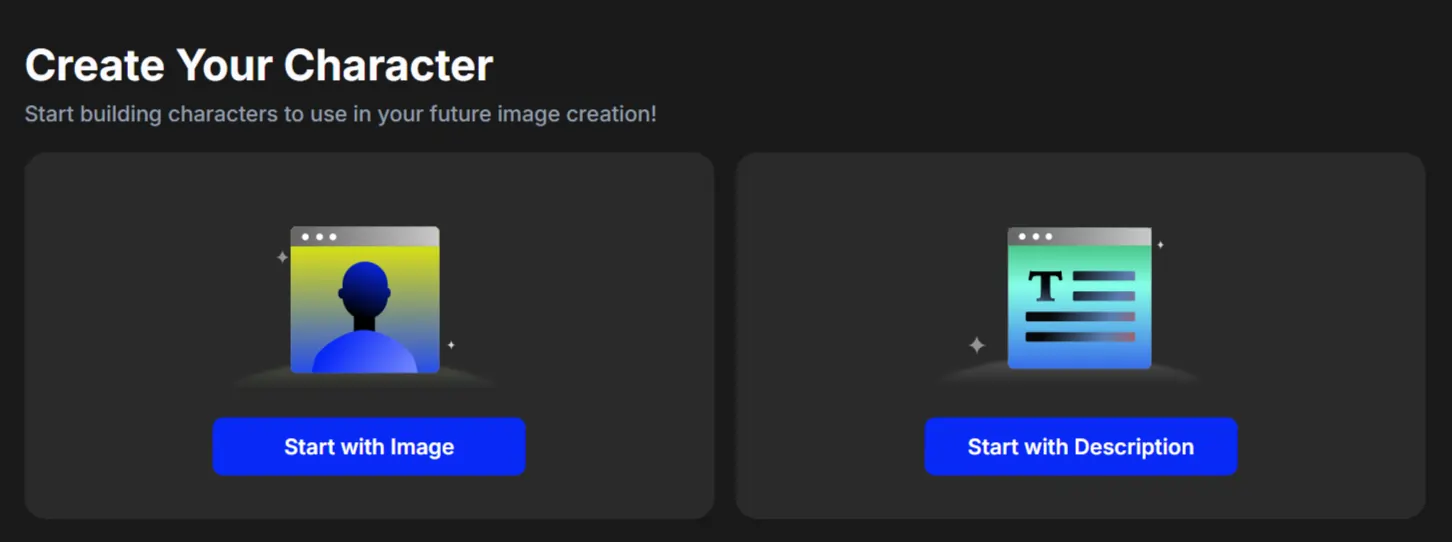
This is how smart creators build audiences:
- Create one signature AI character
- Use it across all content
- Audiences recognize “her” instantly
- Brand loyalty grows naturally
For NSFW creators? You can build an entire AI girlfriend persona, generate teaser content, and monetize through Patreon, OnlyFans, or custom request services.
Adding Audio to Your Talking Videos (3 Methods That Work)
Audio makes or breaks your video. Here’s how to nail it:
Method 1: Upload Your Own Audio Files
Record yourself, hire a voice actor, or use royalty-free audio clips.
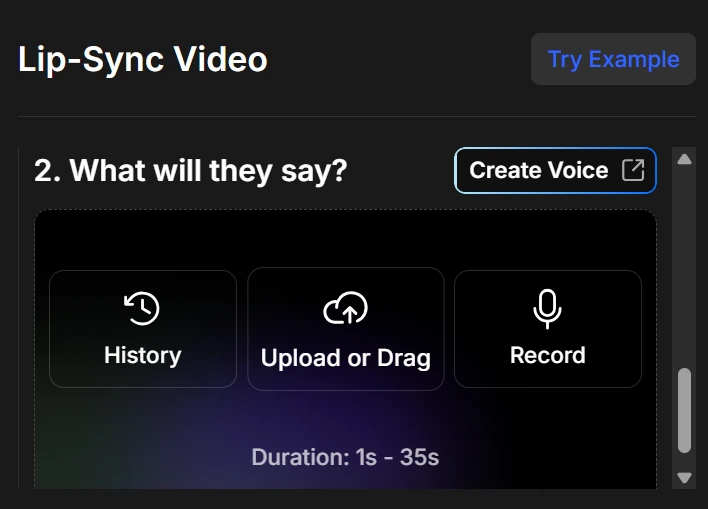
Quick fix if your audio won’t sync? Re-export at standard sample rates before uploading.
Method 2: Built-In Text-to-Speech
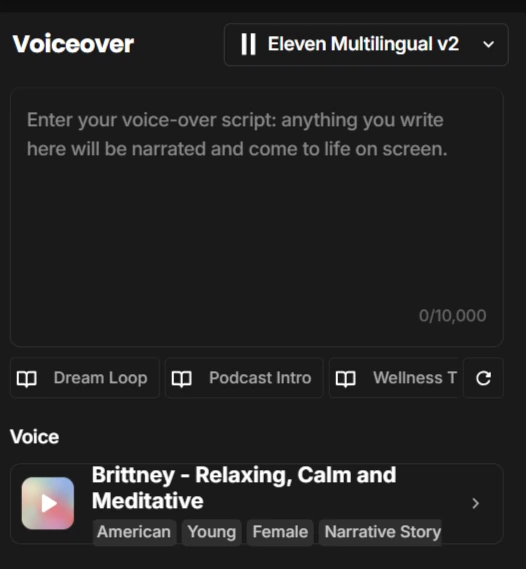
Type your script, pick a voice from the dropdown, done.
When it’s useful: Quick tests, no recording setup, multilingual content
When it sucks: Zero personality compared to real voices. Your AI influencer sounds like a GPS.
Method 3: Voice Cloning Integration (The Secret Weapon)
Connect your ElevenLabs account to OpenArt for custom voice clones.
Record yourself once → Clone your voice → Generate unlimited audio without speaking again.
Monetization angle: Offer “personalized messages” at scale. Your AI girlfriend can send custom voice notes to 100 subscribers, and you only recorded one sample.
This is how NSFW AI chat creators make serious bank—automation that feels personal.
Step-by-Step: Generating Your First AI Talking Video With OpenArt Lip-Sync
The 5-Minute Creation Process
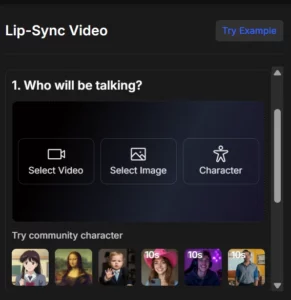
- Step 1: Upload your character image to OpenArt
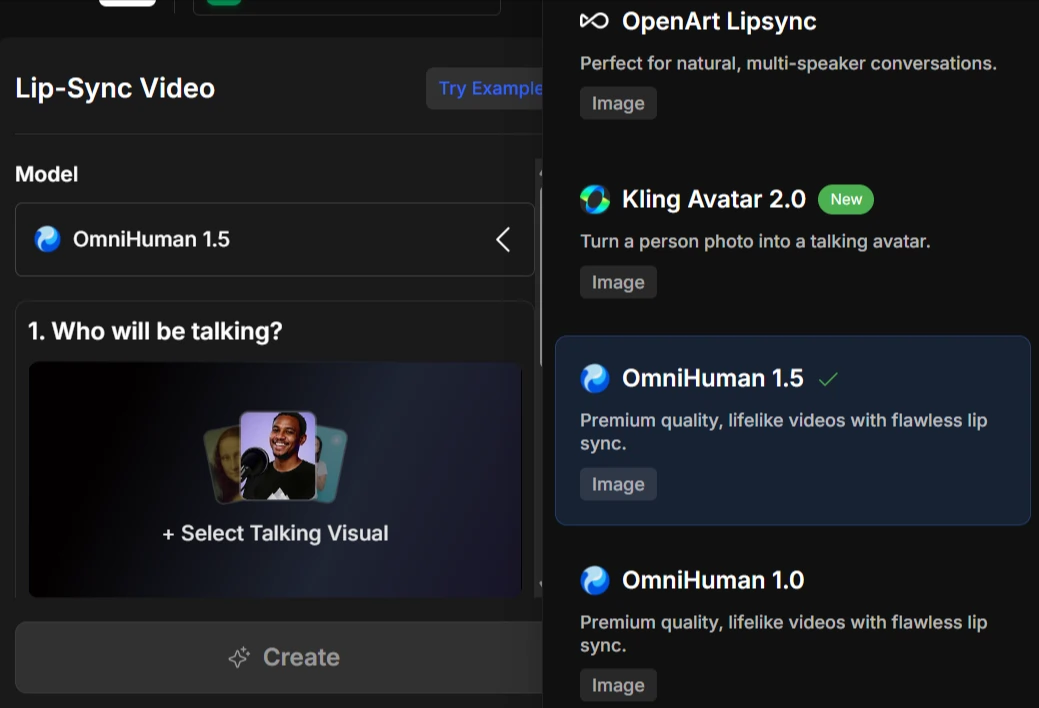
- Step 2: Select lip-sync model from the dropdown menu
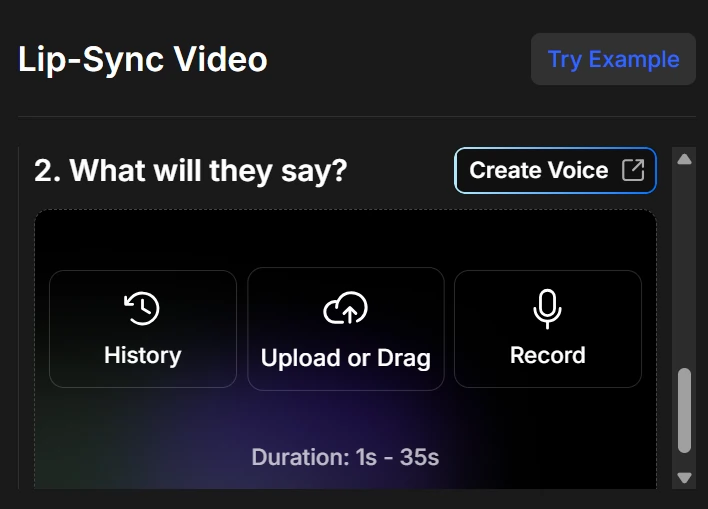
- Step 3: Add audio (upload file, use TTS, or paste voice clone link)
- Step 4: Hit generate and wait 30 seconds to 5 minutes
- Step 5: Download MP4 and post to socials
That’s it. No complicated editing, no rendering settings, no faffing about.
Common Mistakes That Kill Results
Fix these, and your AI influencer content jumps from amateur to pro.
OpenArt AI Lip-Sync Tool 15% Off
exclusive
Generate realistic AI lip-sync videos with OpenArt tools. Redeem Code ALL15 and enjoy 15% Off premium access.
SAVE UP TO 15
Advanced Tricks for Professional-Looking Videos
Once you’ve got basics down, level up with these moves:
Creating Multi-Character Scenes
Use Kling Avatar 2.0 to generate conversations between two AI personas. Upload both images, feed it dialogue with speaker tags, and watch them chat.
Perfect for:
Combining Video-to-Video Tools
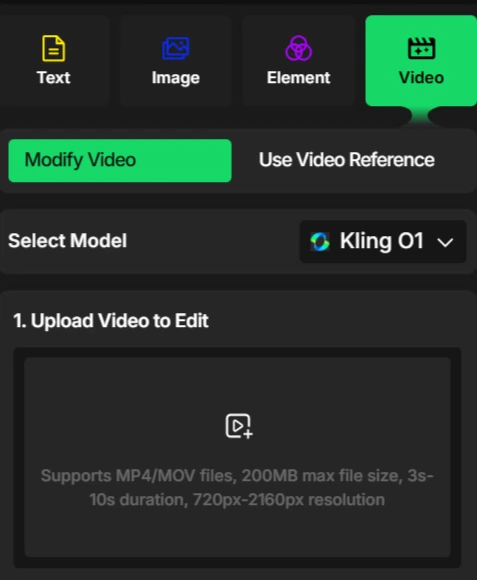
Generate your lip-sync video → Run it through OpenArt’s video-to-video feature → Add artistic filters, change backgrounds, or adjust lighting.
This workflow produces content that looks miles above basic AI outputs.
Adding Motion and Polish
OpenArt’s motion-sync feature adds subtle head movements and gestures. Your character doesn’t just talk—she nods, tilts her head, reacts.
Pair with AI-generated sound effects and background music for videos that slap.
Monetizing Your AI Influencer Content (Where the Cash Comes In)
Let’s talk money, because that’s why you’re here.
Platform-Specific Strategies
| Platform | Content Focus | How You Get Paid | Monthly Earnings |
|---|---|---|---|
| TikTok | Viral hooks, product reviews, NSFW teasers | Creator fund, brand deals, affiliates | $500-$3,000 |
| YouTube Shorts | Tutorials, explainers (faceless) | Ad revenue after 1K subs | $1,000-$5,000 |
| Instagram Reels | Product promos, brand collabs | Sponsored posts, affiliates | $200-$1,000 per post |
| OnlyFans/Patreon | AI girlfriend/boyfriend content | Monthly subs, custom requests | $5,000-$20,000 |
Revenue Streams That Actually Pay
Comparing OpenArt to Other AI Influencer Tools
Quick Alternatives
Why OpenArt Wins
For most creators, OpenArt’s the sweet spot between features and price.
Final Verdict—Should You Use OpenArt for AI Influencer Videos?
The AI influencer space is exploding. Creators who jump in now will own their niches before saturation hits. Virtual spokespersons, AI girlfriends, faceless education channels—pick your lane and start generating.
Your competition is already posting. Time to catch up.
AITwin Ninja
Affiliate Disclosure: This post may contain some affiliate links, which means we may receive a commission if you purchase something that we recommend at no additional cost for you (none whatsoever!)
Similar Posts
Author
sandra
Sandra is a tech ethicist and lead writer for AI Twin. She investigates the societal impact of AI replication technology, focusing on the ethical implications, privacy concerns, and future of human connection in an increasingly digital world.