Higgsfield AI Tutorial for Beginners — Complete Guide 2026
If you’re tired of paying for five different AI tools just to get one decent video, Higgsfield AI finally lets you do it all in one place. This Higgsfield AI Tutorial is written for beginners who want practical results, not theory. You’ll learn how to turn a single image into scroll-stopping videos, build characters that…

By :
Ralph
March 30, 2026
If you’re tired of paying for five different AI tools just to get one decent video, Higgsfield AI finally lets you do it all in one place.
This Higgsfield AI Tutorial is written for beginners who want practical results, not theory. You’ll learn how to turn a single image into scroll-stopping videos, build characters that stay consistent from shot to shot, and export ready-to-post ads in a few minutes instead of a few hours.
No editing background, no “creative director” skills, no fluff — just a clear, step-by-step path from blank screen to finished video.
What Is Higgsfield AI (And Why Everyone’s Talking About It)
Higgsfield isn’t just another AI video generator. It runs Sora, Kling, Veo, Nano Banconana, Flux, and Seedream all under one roof — meaning instead of hopping between tools, you get a single creative control layer that handles everything.
Who it’s built for:
Higgsfield AI Tutorial: How to Sign Up & Set Up Your Account
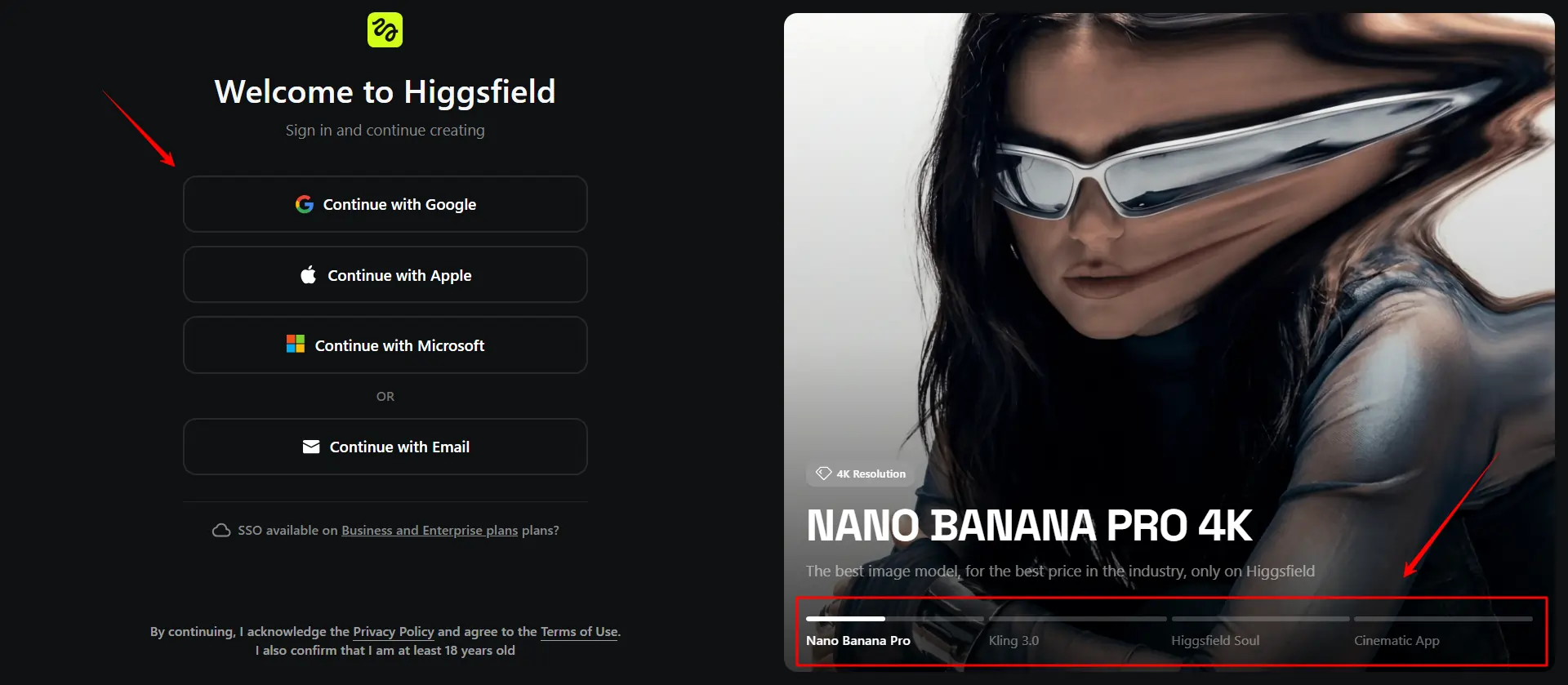
Getting started takes under two minutes. Hit the sign-up page, log in with Google, and you’re inside the dashboard. Before you generate anything, check your credit balance — every generation costs credits, and burning them on test runs without a plan adds up fast.
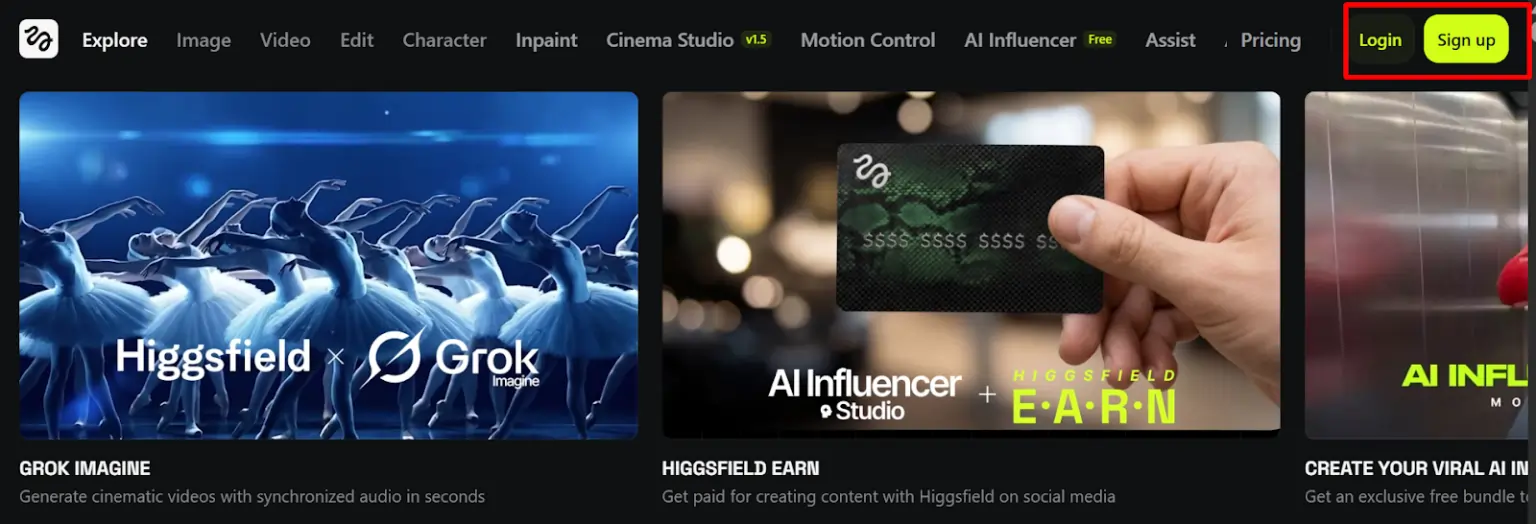
What to do first:
- Connect your Google account
- Review available credits
- Browse the Community feed for what’s performing
- Set up your Assets Library folder before uploading anything
Higgsfield AI Dashboard & Interface Walkthrough
The main screen is where everything lives. You’ve got: Create Image, Create Video, Motion Control, Apps, Assets Library, and Community — all laid out as clickable cards right in front of you the moment you log in.
The Apps section houses one-click tools like Lipsync Studio, Click to Ad, Cinema Studio, and Soul ID. The Community section is genuinely useful — it shows trending generations so you can reverse-engineer what’s working before writing a single prompt.
How to Generate AI Images on Higgsfield?
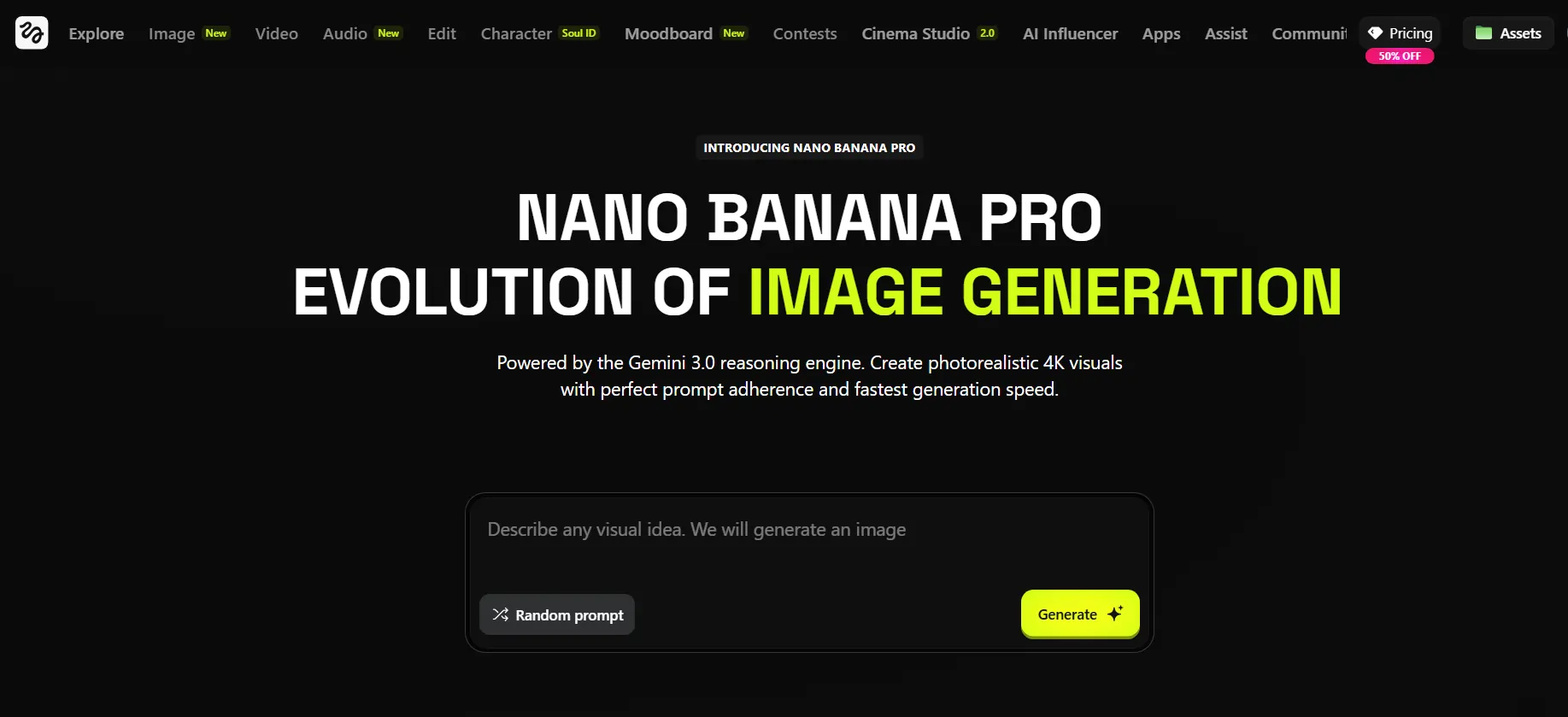
Nano Banana Pro
This is the go-to for 4K-quality image generation. Use it for product visuals, character art, and any output where sharpness matters.
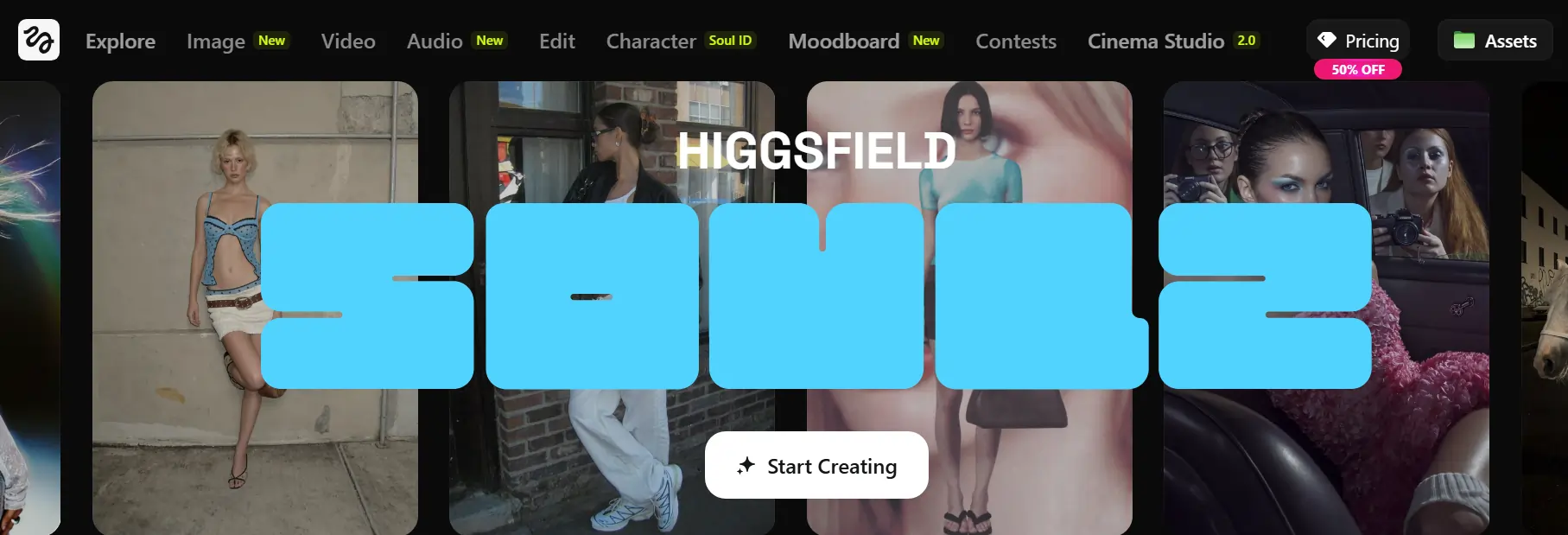
Soul 2.0
Fashion-forward portraits with cultural fluency baked in. Best for influencer-style characters and lifestyle content.
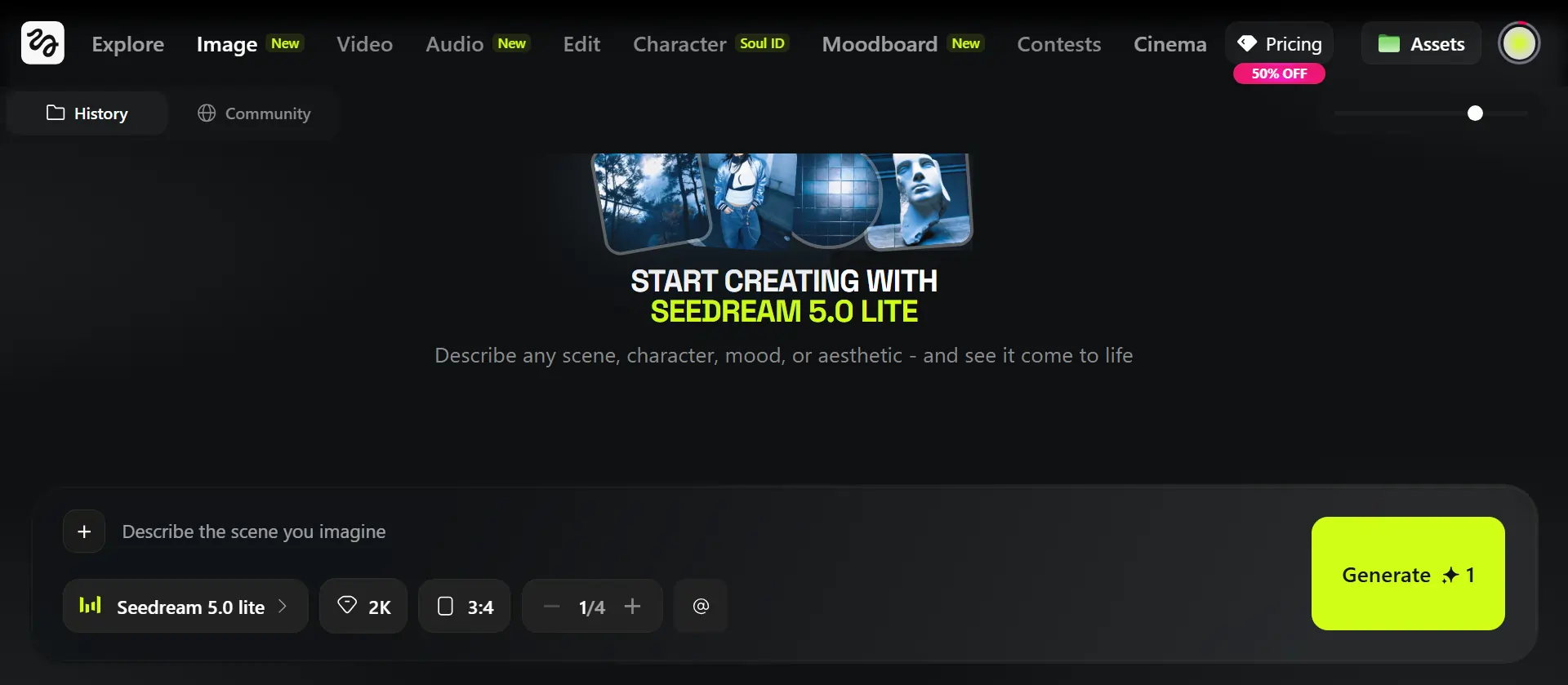
Seedream 5.0 Lite
Logically consistent image outputs. Use this when you need something that makes visual sense — no floating hands or mismatched lighting.
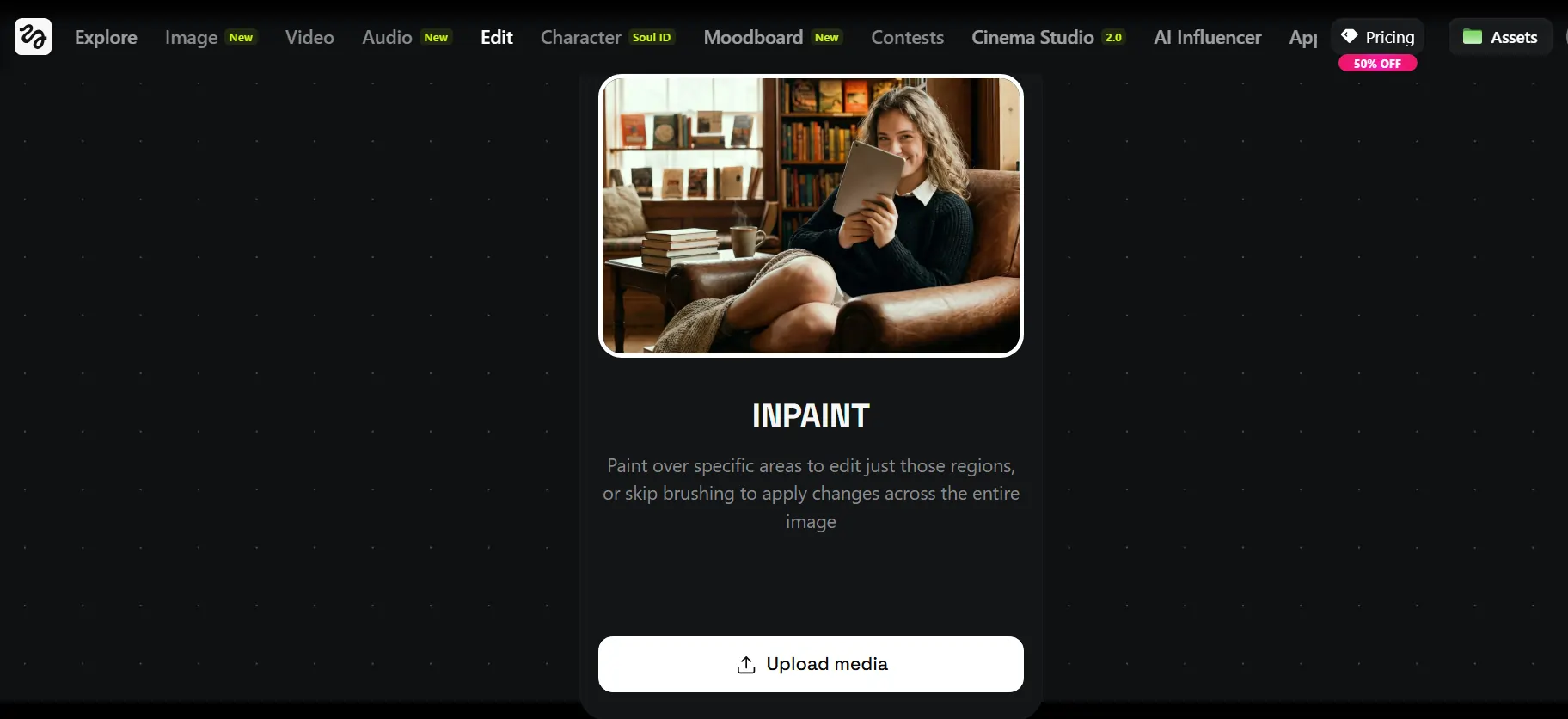
Draw to Image
Brush-select any area of an existing image and regenerate just that part. It’s a built-in inpainting tool that saves you from starting over every time something’s slightly off.
Face Swap, Soul Hex & Pro Tools
Face Swap replaces any face in an image instantly. Soul Hex extracts a color palette from any image and applies it to your outputs for brand consistency. Angles 2.0 (Pro) generates any camera angle from a single image. Skin Enhancer (Pro) adds natural, realistic skin texture without the plastic-looking AI finish.
How to Create AI Videos on Higgsfield (Step-by-Step)
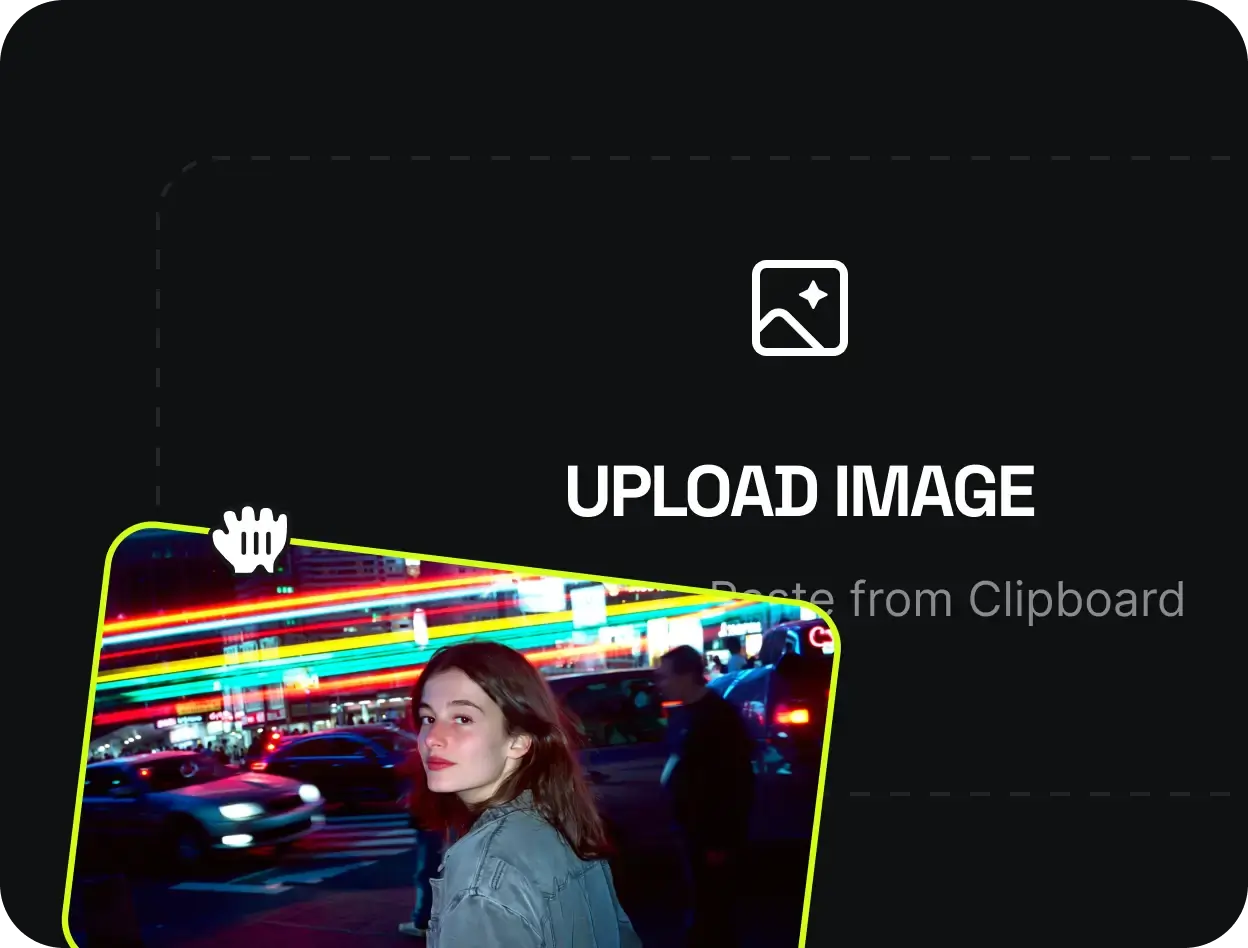
The core workflow: upload an image → write a prompt → pick a model → generate.
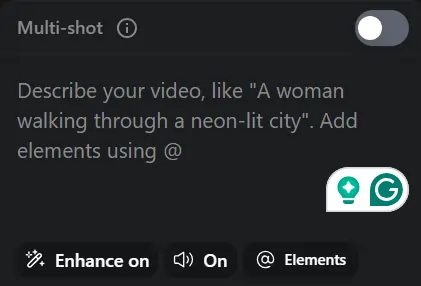
Prompt Structure That Actually Works
[Character/subject] + [specific action] + [mood/style] + [camera angle] + [lighting]Which AI Video Model Should You Use?
| Model | Best For |
|---|---|
| Kling 3.0 | Cinematic quality, fast renders |
| Kling 2.6 | Video with built-in audio |
| Sora | Long-form, high-fidelity scenes |
| Veo 3 / Veo 3 Fast | Realistic motion, expressive avatars |
| Seedream 5.0 Lite | Accurate, consistent visual outputs |
Other Key Video Features
Motion Control — Precise Character Action & Expression Control
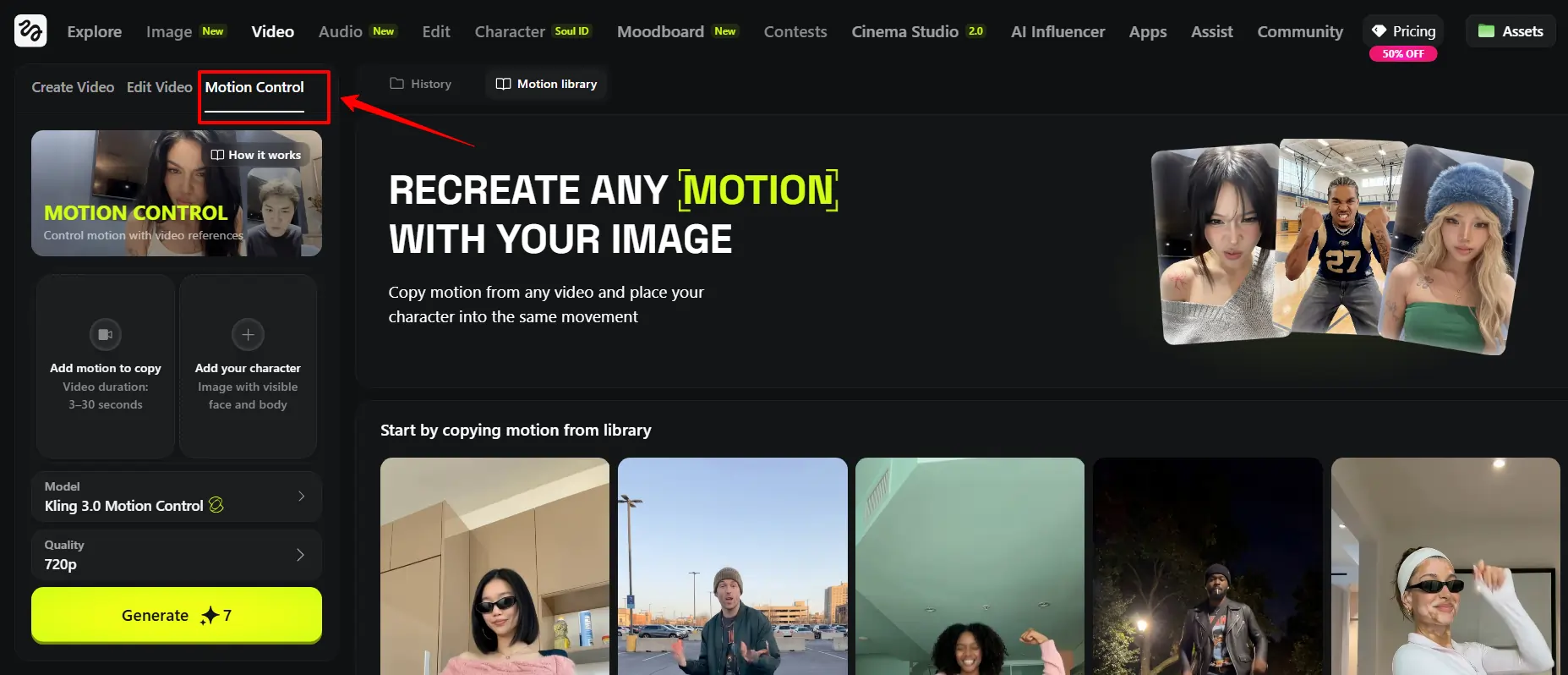
Motion Control lets you run up to 30 seconds of frame-accurate character movement. Upload an image, set motion parameters (walk cycle, head turn, hand gesture, emotional expression), and the AI handles the rest. This is the feature that separates Higgsfield from basic text-to-video tools.
Soul ID — How to Build a Consistent AI Character
Soul ID solves the biggest problem in AI content: inconsistency. Upload one clean portrait, and Higgsfield builds a reusable character you can drop into any image or video. Same face, same energy, every time. Pair it with AI Influencer Studio and you’ve got a full viral character pipeline — content series, ad spokespersons, brand mascots, all from a single source image.
Lipsync Studio — Make Any Character Talk (With Full Expression)
Step 1 — Write your script for Speak v2:
Use CAPS for emphasis, ellipses (…) for natural pauses, and [brackets] to define tone like [excited] or [calm].
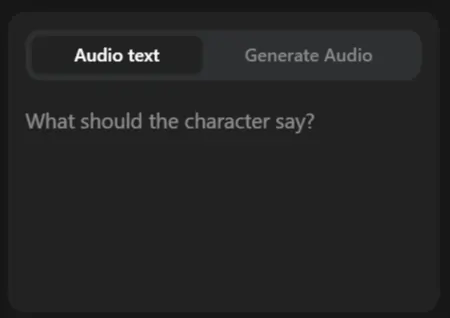
Step 2 — Generate the voice:
Speak v2 reads tone cues automatically and produces natural, paced audio. No manual editing needed.
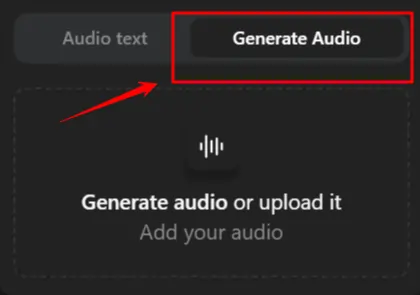
Step 3 — Pick your visual base:
Step 4 — Sync, preview, and export:
Preview generates in roughly one minute. Final export hits 1080p/48FPS. If the mouth sync is slightly off, adjust the script pacing before re-generating — don’t just keep hitting regenerate without changing something.
Cinema Studio 2.0 — Full Cinematic Scene Control
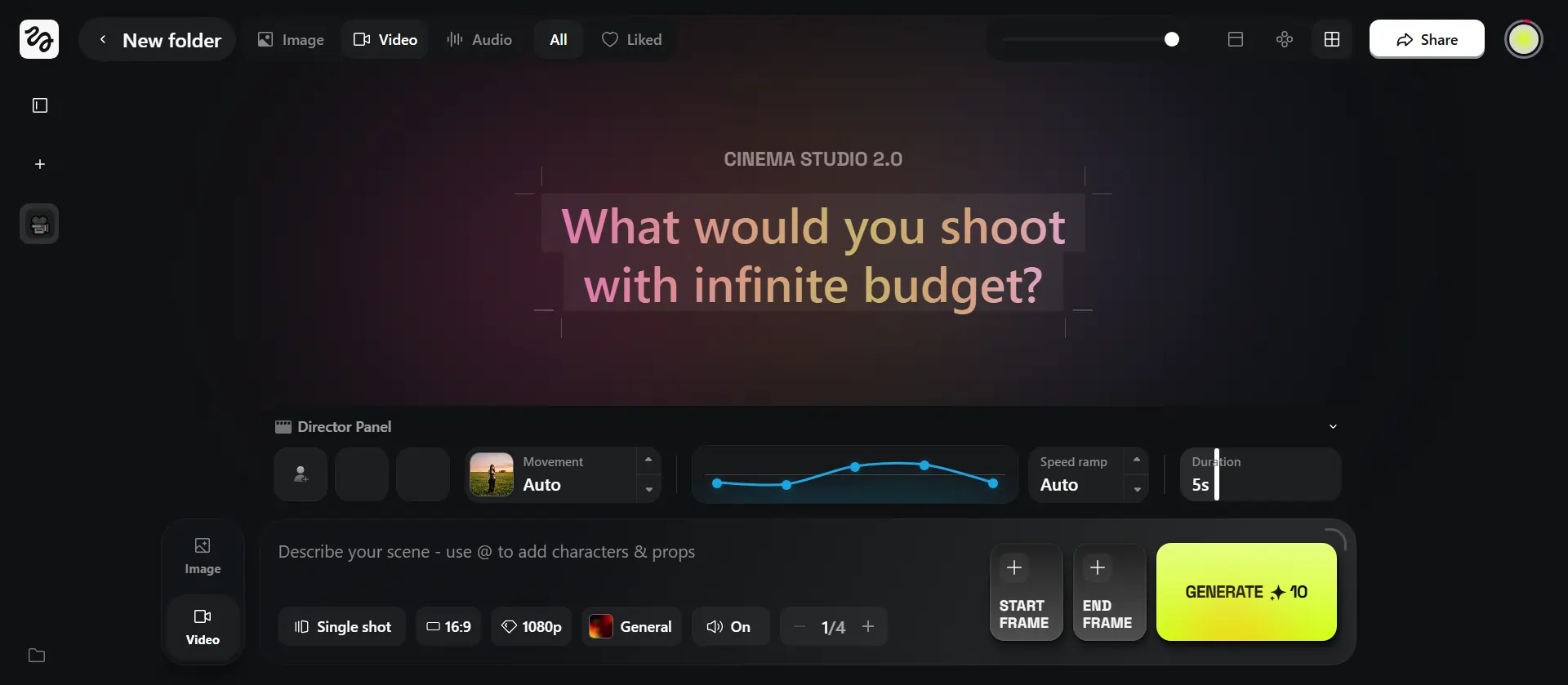
Cinema Studio 2.0 puts you inside a 3D scene where you control every shot. Advanced camera lens simulations, multi-shot cinematic sequences, start/end frame control at the scene level — this is for creators who want their AI content to look like it came out of a production house, not a free tool.
Transitions — Seamless Shot-to-Shot Video Edits
The Transitions tool creates seamless cuts between any two shots.
Upload your clips, let the AI bridge them, and the result is smooth enough for Reels, TikTok cuts, and cinematic short-form content. It’s one of the most-used features for viral content on the platform.
Recast — Swap Characters in Any Video (Pro)
Upload any video, select your replacement character, and Recast drops them in.
Use it to repurpose existing ads with a different spokesperson, localize content for different markets, or swap in your branded AI character without re-filming anything.
Click to Ad — Turn Any Product URL Into a Video Ad
This is Higgsfield’s most marketer-specific tool — and it’s genuinely fast.
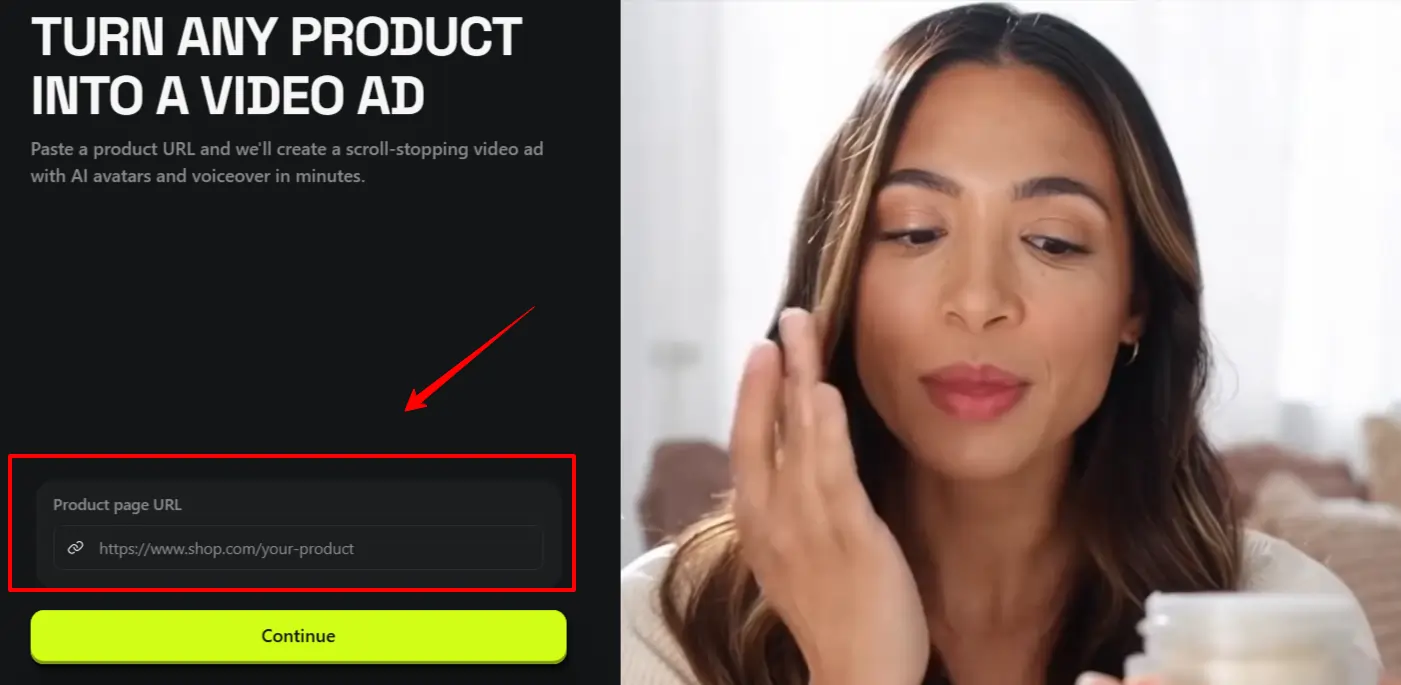
How it works:
- Paste any product page URL (ecommerce, landing page, or catalog card)
- Higgsfield auto-extracts: product name, description, up to 8 images, brand colors, and logo
- Review the “Product Kit” and replace any missing assets manually
- Pick from 10 pre-designed ad templates
- Add an AI avatar spokesperson (optional)
- Generate and download your final ad video
Higgsfield AI Prompting Tips — Get Better Results Every Time
Common Mistakes Beginners Make on Higgsfield
Missing emotion brackets in Lipsync — the voice output will sound flat without them

AITwin Ninja
Affiliate Disclosure: This post may contain some affiliate links, which means we may receive a commission if you purchase something that we recommend at no additional cost for you (none whatsoever!)
Similar Posts
Author
Ralph
Ralph is a digital architect at AI Twin, exploring the intersection of AI and identity. He deconstructs how neural networks are reshaping our digital selves, one algorithm at a time. His writing simplifies complex tech into actionable insights for the future-focused individual.